Notion diagrams: how to add, edit, and maintain diagrams inside a Notion page
Updated: 2026-05-22 · Five approaches compared, with notes on which fits which job.
"Diagrams in Notion" covers five fundamentally different mental models, and most of the friction people hit comes from picking the wrong one for the job. A native Mermaid code block is great for one-off diagrams that never change. An embedded Miro board is great for a workshop where ten people are co-editing live. A Chrome extension that saves a real Notion image block is great when the diagram needs to stay current inside a doc you keep coming back to. Each of these is right for a different situation, and each fails badly when used for the wrong one. This guide is the conceptual map: what the five approaches are, how to think about the choice, how to pick by diagram type, team size, and use case. For the tool-by-tool comparison and ranking, see the best diagram tools for Notion roundup.
 Try free
What "in Notion" actually means
The phrase "diagrams in Notion" gets used three different ways, and they correspond to three different ownership models worth understanding before you pick a tool.
Native blocks are content types Notion handles directly. A Mermaid code block, an image block, or a text-based table all sit inside the Notion page as Notion content. They search like Notion content, export like Notion content, sync like Notion content. If you uninstall every third-party tool you own, native blocks stay exactly where they are.
Embed blocks hold a URL and render whatever sits at that URL inside an iframe. The Notion page becomes a frame around content that lives on someone else's server. A Miro board, a Whimsical canvas, a Lucidchart diagram, all of these are embed-shaped. Useful for collaboration with external tools, fragile when the upstream service changes URLs or terms.
Code blocks hold text source that the page renders. Mermaid is the most common diagram-shaped code block in Notion. The source is portable and human-readable, but the rendering is read-only: you can edit the text to change the diagram, but you cannot click a node and drag it.
Which model fits depends on a single question: where do you want maintenance to happen? If the diagram needs to keep evolving inside the Notion page over months and years, the native-block model wins. If the diagram is a real-time team artifact that needs synchronous editing, the embed model wins. If the diagram is a one-shot output that never changes, the code-block model is the fastest path.
The five approaches at a glance
When people ask how to add a diagram to a Notion page in 2026, we count five practical approaches. Each handles ownership and editability differently, and the right one depends on what you are diagramming and how often it will change.
| Approach | Block type | Visual editing | Best for | Cost | Tool roundup |
|---|---|---|---|---|---|
| Chrome extension (Flowblock) | ✅ Notion image block + source | ✅ Yes (in-page modal, Excalidraw + draw.io) | ✅ In-Notion editable diagrams that stay current | ✅ Free for 5/month, then $3.75/month | Flowblock review → |
| Native Mermaid | ✅ Code block (in Notion) | ❌ No (source text only) | ⚠️ One-off diagrams from typed syntax | ✅ Free | Native Mermaid review → |
| Database-driven Mermaid | ✅ Database + code block | ❌ No (database fields) | ⚠️ Flowcharts driven by structured data | $5 one-time | Flowchart Generator review → |
| External tool with embed | ❌ Iframe (external site) | ⚠️ Yes (on external site) | Team whiteboarding, industrial diagrams | $9 to $20 / user / month | Whimsical, Miro, Lucidchart, draw.io, Excalidraw |
| Image upload | ⚠️ Image block (no source) | ❌ No (image only) | ⚠️ Static screenshots, exported artifacts | Depends on source tool | Whimsical, Miro, Lucidchart, draw.io, Excalidraw |
Tool-by-tool depth, ranking, and prices for each approach live in the best diagram tools for Notion roundup. The rest of this guide stays at the category level and focuses on how to think about the choice rather than which specific tool to pick.
The maintenance problem with each approach
Most "which diagram tool should I use in Notion" advice optimises for the first draw. In our experience that is the wrong end of the problem. Drawing a diagram for the first time is rarely where teams lose time, whether you are working from a native Mermaid block or from embedded diagrams in Notion. The fifth, tenth, twentieth edit is where the cost compounds.
A diagram captures the state of a system at a point in time. Systems change. The week after you draw a flowchart of your onboarding flow, marketing adds a verification step. Three weeks later, the auth provider changes. Two months later, a whole team gets renamed. The diagram is still on the Notion page, accurate enough on day one and quietly wrong by day forty.
Each of the five approaches handles this differently:
- Chrome extension (Flowblock): click Edit, drag the node that changed, save. The image block updates in place, version history is preserved, no exports involved.
- Native Mermaid: editing the source is fine for tiny changes (rename a label) and clumsy for anything else. Layout shifts especially are painful.
- Database-driven Mermaid: updating a database row updates the diagram. Excellent when the underlying data really does live in a database. Awkward when it does not.
- External tool with embed: the diagram is editable on the external service, but only if you remember to keep the subscription, the share URL is still valid, and the team member who originally created it still has access.
- Image upload: the worst maintenance story. Almost always abandoned after a few cycles.
For more on the maintenance angle and how it plays out across diagram types, see the tool comparison roundup. The TL;DR: if the diagram will be touched more than once, optimise for maintenance, not creation.
Pick by diagram type
Different diagram types are well-served by different approaches, and no single Notion diagram editor handles all of them equally well. From our testing, here are notes for the most common shapes:
- Flowcharts. If hand-written and never changing: native Mermaid. If AI-generated and you want visual control: Flowblock's Mermaid import. If team-co-authored live: Whimsical or Miro embed. See also the three ways to add a flowchart in Notion and the Mermaid-to-flowchart guide.
- Sequence diagrams. Native Mermaid handles these cleanly, but visual editing is rarely needed (sequence diagrams are mostly write-once). Flowblock's Mermaid import converts cleanly into Excalidraw if you want to annotate or restyle.
- ER diagrams. Mermaid supports ER natively. For editing, draw.io (inside Flowblock or standalone) is the only option that preserves structure. Native Mermaid renders ER but the visual layout is mediocre.
- State machines. Same story as ER: Mermaid renders, draw.io edits.
- UML diagrams. Native Mermaid covers class diagrams reasonably. For full UML (use case, component, deployment), draw.io's stencil library is the right tool. Lucidchart is the enterprise alternative.
- BPMN diagrams. draw.io has a full BPMN library, free. Lucidchart's BPMN is more polished and team-shared. Mermaid does not support BPMN.
- System architecture diagrams. draw.io's AWS/Azure/GCP icon libraries are excellent and free. Lucidchart at enterprise scale. Excalidraw if the architecture is meant to look "sketchy" rather than "official".
- Wireframes. Whimsical wins this outright. Excalidraw via Flowblock works for low-fidelity early-stage wireframes. Avoid Mermaid here.
- Mind maps. Mermaid supports mindmap syntax for write-once mind maps. Whimsical or Flowblock for anything you want to keep iterating on.
- Org charts. Mermaid does these as flowcharts. The native Notion Org Chart database template handles relationships better than a static diagram if the data lives in a database. draw.io for hand-drawn organisational structures.
- Freehand sketches. Excalidraw via Flowblock. Nothing else competes on the hand-drawn aesthetic and the in-Notion save flow.
Pick by team size
Team size changes which trade-offs matter. Three rough brackets:
- Solo (1 person). Native Mermaid for throwaway diagrams. Flowblock for anything that needs to keep evolving. Skip the team-collab tools; per-user pricing is wasted, and the iframe model is overkill for a single author.
- Small team (2 to 20). The mix matters. Async docs and PRDs: Flowblock for in-Notion editable diagrams. Live workshop sessions: Whimsical for cleaner structured collab, Miro for sticky-note-heavy whiteboarding. Native Mermaid still has a place for engineering-team diagrams where the source is committed alongside code.
- Large org (20+). Standardisation matters more than tool features. The right choice is the one the team will actually adopt, which is usually whichever tool the team is already paying for at an enterprise tier. Lucidchart fits organisations that need shared shape libraries and audit logs. Miro fits ones with a strong workshop culture. Flowblock fits the long tail of "every team has a Notion workspace and someone occasionally needs a flowchart" without negotiating a team license.
Pick by use case
Sometimes the use case selects the tool more cleanly than the diagram type or team size, and we find this is especially true for teams that already rely on visual diagrams in Notion docs:
- Engineering documentation. Native Mermaid in the codebase, Flowblock in the Notion docs that summarise it. Mermaid source travels with the code, the Notion diagram travels with the doc; both stay in sync if you treat one as the source of truth.
- Product specs and PRDs. Flowblock for the diagrams that go into the spec. The diagram is part of the doc, lives where the doc lives, edits in place when the spec evolves.
- Founder / solo notes. Native Mermaid for one-shot diagrams, Flowblock for the recurring ones (roadmaps, customer journeys, business model sketches that come back every quarter).
- Process documentation. Notion VIP if your processes already live as database rows. Otherwise Flowblock for visual flowcharts that get reviewed and updated quarterly. The trade-off between those two is exactly the database-vs-canvas split we compare head-to-head.
- Workshop output capture. Run the workshop in Miro or Whimsical, then embed the resulting board into the Notion writeup. Trying to draw a 20-person sticky-note session in Mermaid or Flowblock is the wrong tool for the moment.
- Customer-facing artifacts. Image upload from a polished design tool (Figma, Sketch) makes sense when the diagram is for an external audience and you want pixel control. The trade-off (no in-Notion editing) is acceptable because the artifact is published once and rarely changes.
How to edit a Notion AI Mermaid diagram
This is the use case that lands most readers on this page, so it deserves a dedicated section. Notion AI is good at generating first-draft diagrams: ask for a flowchart of the onboarding process, a sequence diagram of the API call flow, or an ER diagram of the data model, and you get a Mermaid code block that renders as a clean static image. The frustration starts when you want to change something.
Three paths from the Notion AI Mermaid block:
- Edit the Mermaid source directly. Open the block, edit the code, Notion re-renders. Fine for renaming nodes and small text changes. Painful for layout, colour, structural rewrites. Inaccessible to non-technical teammates.
- Re-prompt Notion AI. Tell the AI what to change and hope it regenerates close to what you had. Works for simple cases. Loses any manual touch-ups you applied previously, because the AI starts from scratch each time.
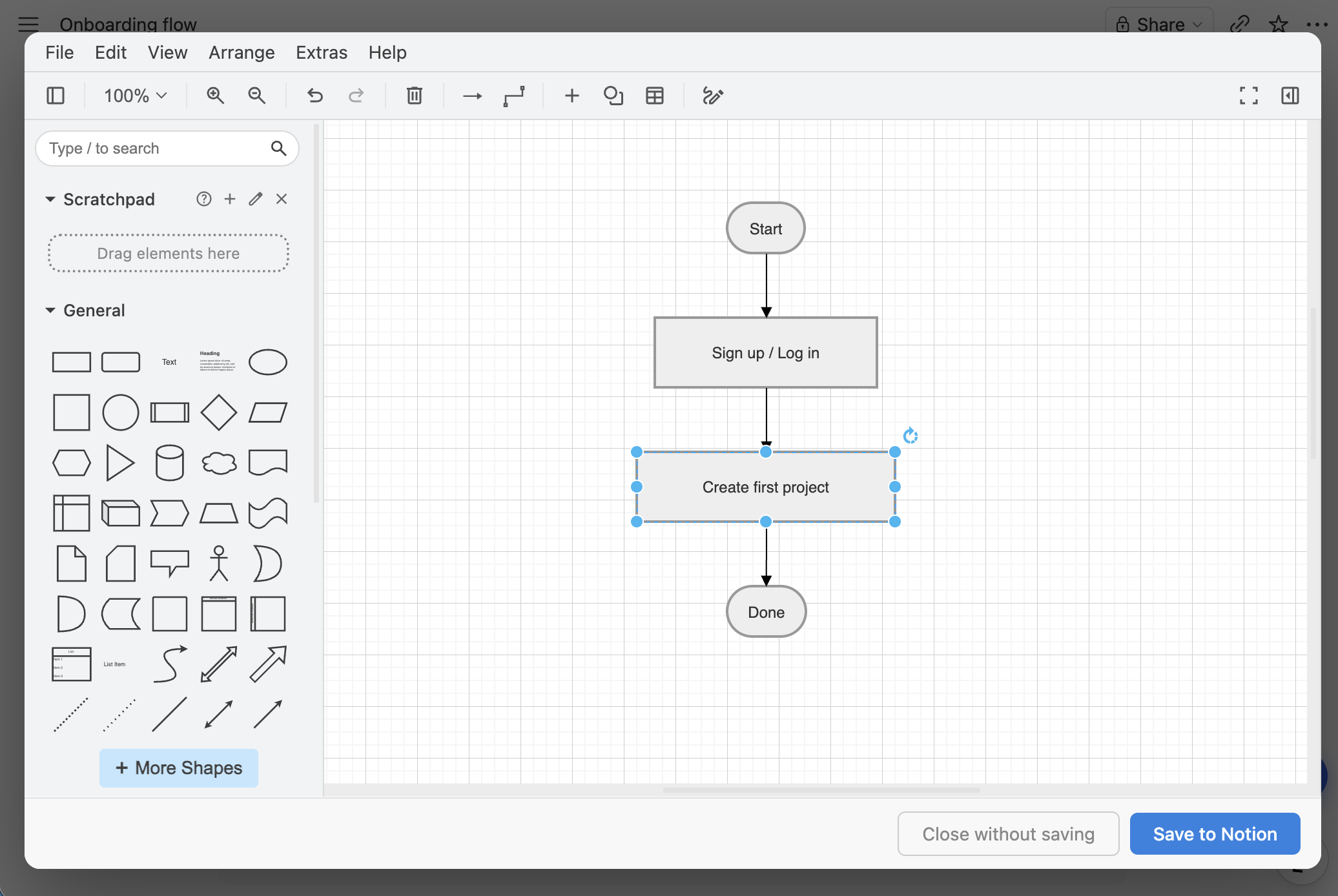
- Convert to an editable canvas via Flowblock. Hover the Mermaid block; Flowblock adds an Import button. One click parses the Mermaid source and reopens the diagram in Excalidraw or draw.io, where every node, edge, and label is editable as a real visual element. Save, and the Notion page gets a native image block that you can reopen and edit forever.
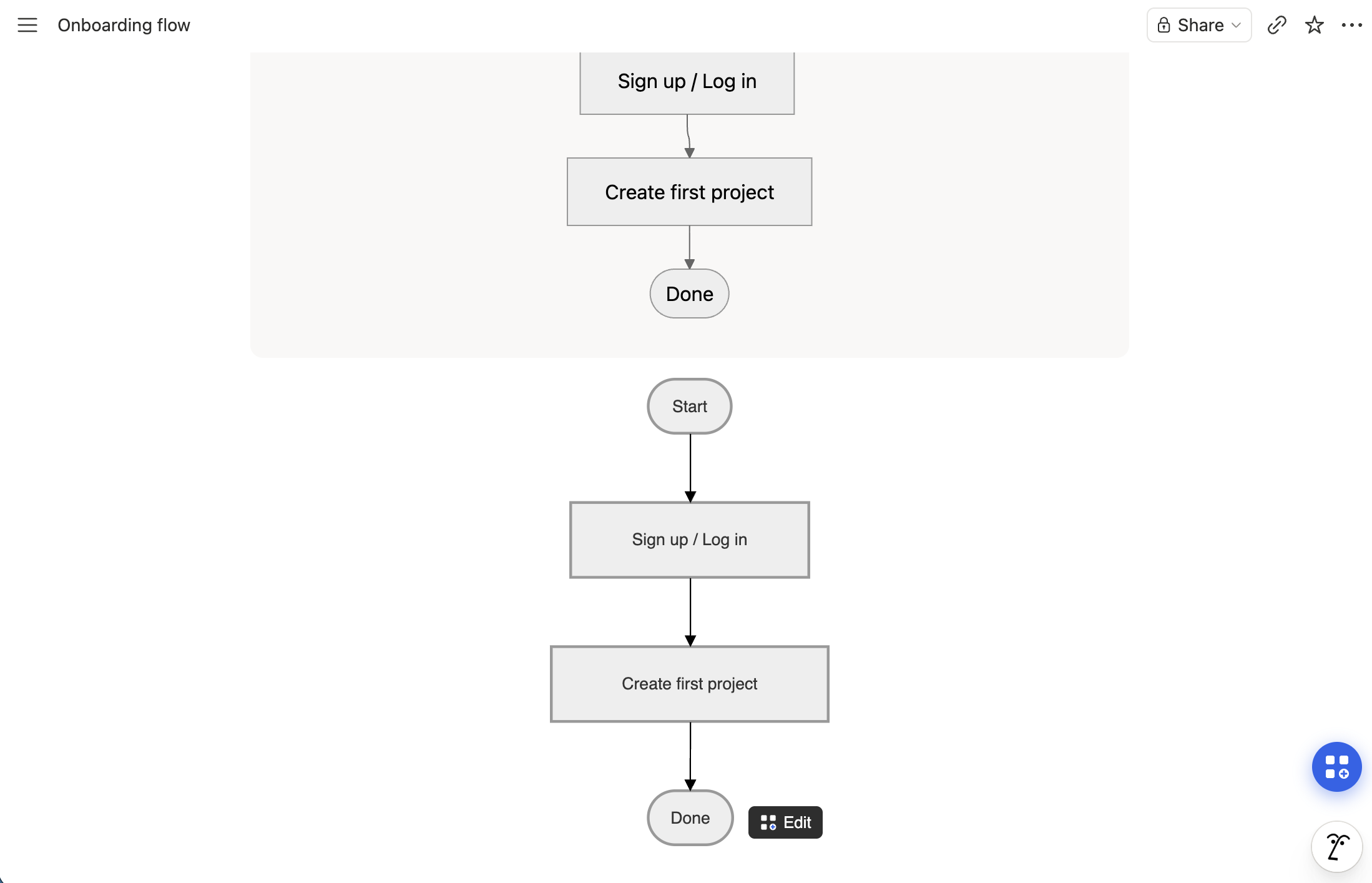
What we've found in practice is that the Mermaid-to-canvas import path is what makes the Notion AI workflow practical for diagrams that actually need to stay current, and it is the single feature that turns the extension into a proper Notion diagram editor rather than just a viewer. The Mermaid to flowchart guide goes deeper into how the import works, which Mermaid types convert cleanly, and where the fidelity edges are.
All guides
Every guide in the Flowblock library. Pages are added as the cluster grows; this index is the canonical entry point.
Comparisons
How-to guides
FAQ
What is the best way to add a diagram to a Notion page?
It depends on whether the diagram will change after you draw it. For one-off diagrams that never change, Notion's native Mermaid code block is the simplest path. For diagrams you will edit later (which covers almost everything in active documentation), a Chrome extension like Flowblock saves the result as a native Notion image block that stays editable forever. For team workshops with multiple live editors, an external tool like Whimsical or Miro embedded into the page is the right fit, with the trade-off that the diagram lives outside Notion.
Can I edit a Notion diagram after creating it?
It depends on how the diagram got there. A native Mermaid code block is editable as text but not as a visual canvas. An iframe embed (Whimsical, Miro, Lucidchart) is editable from the Notion page but the changes save to the external service, not into Notion. An image upload from a desktop tool is not editable at all without re-exporting from the original tool. A Flowblock image block stays editable forever: clicking Edit reopens it in Excalidraw or draw.io with the source preserved.
Does Notion have a built-in diagram tool?
Sort of. Notion's /code block has a Mermaid language option, which renders as a static image. That counts as a built-in diagramming feature, but it is code-only: there is no visual canvas, no drag-and-drop editing, no shape library. For anything beyond Mermaid syntax, Notion expects you to embed an external tool or upload an image.
How do I edit a Mermaid diagram that Notion AI generated?
Two paths. You can edit the Mermaid source code directly in the block, which works for small text changes but gets clumsy for layout, colour, or structural edits. Or you can use Flowblock, which adds an Import button to every Mermaid block: one click converts the source into an editable Excalidraw or draw.io diagram, and saving puts the edited version back into the same Notion page as a native image block.
Can I export a diagram from Lucidchart or Miro into Notion?
Yes, in two ways. The Lucidchart and Miro web apps both export to PNG or SVG, which you can upload to a Notion image block; the trade-off is that the image is not editable from Notion and any update means going back to the source tool, re-exporting, and re-uploading. Or you can use the Notion embed block to point at a Lucidchart or Miro URL, which renders the diagram in an iframe and keeps editing on the external service. Pick by where you want maintenance to happen.
What is the difference between a Notion image block, an embed block, and a code block for diagrams?
An image block holds a static image file inside Notion's own storage. An embed block holds a URL and renders whatever is at that URL inside an iframe; the underlying content lives on the linked service. A code block with Mermaid holds text source that Notion renders as an image. Ownership and editability are the practical differences: image blocks stay in your workspace forever, embed blocks break if the linked service goes away or rotates the URL, and code blocks are editable as text but not as a canvas.
Looking for setup, editor, or billing details? See the detailed FAQ →
Want diagrams that stay editable inside Notion?
Flowblock saves Excalidraw and draw.io diagrams as native Notion image blocks, with a one-click Import for Notion AI's Mermaid output.
Try Flowblock - free