How to add a flowchart to a Notion page, then keep it editable
Updated: 2026-06-02 · Three approaches compared, with a real sign-in flow example.
There are three honest ways to put a flowchart in Notion, and they fail or shine for different reasons. You can type Mermaid into a code block, which is free and instant but code-only. You can buy a template that turns a Notion database into a Mermaid flowchart, which is great when the flow already lives as rows. Or you can draw it on a real visual canvas inside Notion with a Chrome extension, which is the only path that stays editable for non-technical teammates over the long run. This guide walks all three, builds the same sign-in flowchart in each, and is honest about when each one is the right call. For the wider category map (embeds, image uploads, every diagram type), see the Notion diagram guide.
 Try free
What "flowchart in Notion" usually means
Most people searching for a flowchart in Notion want the same thing: a diagram of a process, sitting inside a Notion page, that the right people can update when the process changes. The "inside a Notion page" part is what rules out half the tools on the market. You can draw a beautiful flowchart in Figma or Lucidchart, but the moment it lives outside Notion as a flat screenshot, it stops being part of the doc and starts rotting.
So the real question is not "which tool draws the nicest flowchart". It is "which tool keeps the flowchart living inside Notion and editable as the process changes". That single test is what separates the three approaches below. The first two keep the flowchart in Notion natively. The third does too, while also giving you a real visual canvas. Everything else (an embedded Miro board, an uploaded PNG) trades away either the in-Notion ownership or the editability, and we cover those trade-offs in the broader Notion diagram guide.
Approach 1: Notion's native Mermaid code block
Notion's /code block has a Mermaid language option. Switch a code block's language to Mermaid, type the flowchart syntax, and Notion renders it as a static image right in the page. It is free, built in, and there is nothing to install. For an engineer who already thinks in Mermaid, it is the fastest way to get a flow onto the page.
The friction is that it is code, not a canvas. You describe the flowchart in text (A --> B), and Notion draws it with an automatic layout you do not control directly. Renaming a node is a quick text edit. Reordering branches, nudging a box so two arrows stop crossing, or recolouring one path means wrestling with syntax and re-rendering until the auto-layout cooperates. And a teammate in operations or marketing, the people who often own the process the flowchart describes, will not touch raw Mermaid. Native Mermaid is excellent for small, technical, write-once flowcharts and increasingly clumsy for everything else.
Approach 2: the Flowchart Generator template
Notion VIP's Flowchart Generator is a paid template (around $5, one-time) that builds Mermaid syntax from a Notion database. You enter each step and connection as a row in a table, and a formula property emits the matching Mermaid code, which Notion then renders. The mental model is database-as-source-of-truth: the flowchart is a view of structured data, not something you draw.
When your process genuinely lives as rows already (a stage list, an approval chain, a status pipeline), this is elegant: edit one row and the diagram updates, with no drawing involved. The trade-offs are the flip side of that model. You still do not edit visually, customisation beyond the structured fields is awkward, and it is flowchart-only by design. It also leans on the same Mermaid renderer underneath, so the auto-layout limits from Approach 1 still apply. (Note: as of mid-2026 the template has shown as out of stock on its product page; check current availability before relying on it.) We cover it in more depth in the tools roundup, and head-to-head against Flowblock in the Flowchart Generator vs Flowblock comparison.
Approach 3: Flowblock's visual editor
Flowblock is a Chrome extension that adds a real visual canvas to Notion. Click its button on a page and a full Excalidraw or draw.io editor opens in an in-page modal. You draw the flowchart by dragging boxes and arrows, the way you would in any diagramming tool, and on save it lands in the page as a native Notion image block. The difference from a plain image upload is that the editable source is preserved inside that image, so clicking Edit later reopens the exact scene, ready to change.
This is the only one of the three approaches where a non-technical teammate can open a flowchart and move a box. It also handles the case that lands a lot of people here: a Mermaid flowchart that Notion AI generated. Flowblock adds an Import button to Mermaid blocks, so a generated flow can be converted into an editable canvas in one click rather than rebuilt by hand. The Mermaid to flowchart guide covers that conversion in detail. Flowblock is free for 5 diagrams per month, then $3.75/month.
Side-by-side comparison
The three approaches all keep the flowchart inside Notion. Where they differ is how you edit it, how steep the learning curve is, and what it costs.
| Approach | Where the flowchart lives | Editing model | Learning curve | Cost |
|---|---|---|---|---|
| Flowblock | ✅ Native image block + source (in Notion) | ✅ Visual canvas (Excalidraw / draw.io) | ✅ Low (drag and drop) | ✅ Free for 5/month, then $3.75/month |
| Native Mermaid | ✅ Code block (in Notion) | ⚠️ Edit source text, auto-layout | ❌ High (Mermaid syntax) | ✅ Free |
| Flowchart Generator | ✅ Database + code block (in Notion) | ⚠️ Edit database rows | ⚠️ Medium (database setup) | ✅ ~$5 one-time |
The pattern is consistent: native Mermaid is cheapest and most technical, the Flowchart Generator fits structured data, and Flowblock trades a small subscription for the lowest editing friction and the broadest set of people who can maintain the flowchart. For where these sit among embeds, uploads, and the other tools, see the best diagram tools for Notion roundup.
A sign-in flowchart in each approach
To make the difference concrete, here is the same small flow, a user hitting an app and being routed by whether they are already signed in, built three ways.
Native Mermaid. You switch a code block to Mermaid and type the flow as text. It is compact and renders instantly into a static image:
flowchart TD
    A[User hits page] --> B{Auth?}
    B -->|yes| C[Show app]
    B -->|no| D[Sign in]
    D --> C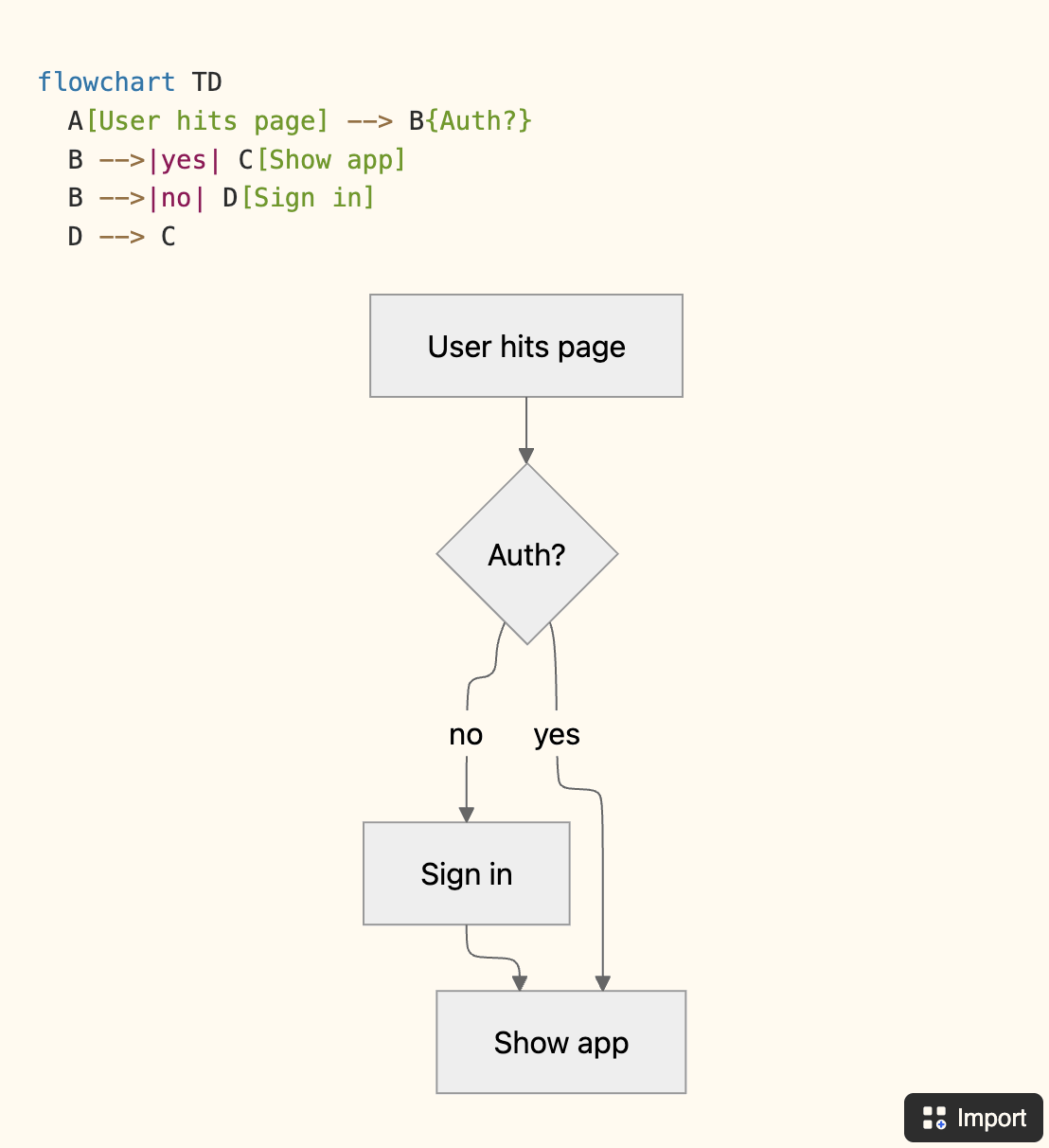
That is the whole flowchart. Fast to write if you know the syntax, and you take whatever layout Mermaid decides on.
Flowchart Generator. You would not type the flow at all. Instead you fill a table: one row per step (User hits page, Auth?, Sign in, Show app), with a column pointing each step at the next. The template's formula stitches those rows into the same Mermaid output. Changing the flow means editing rows, not syntax, which is comfortable if the steps already exist as data.
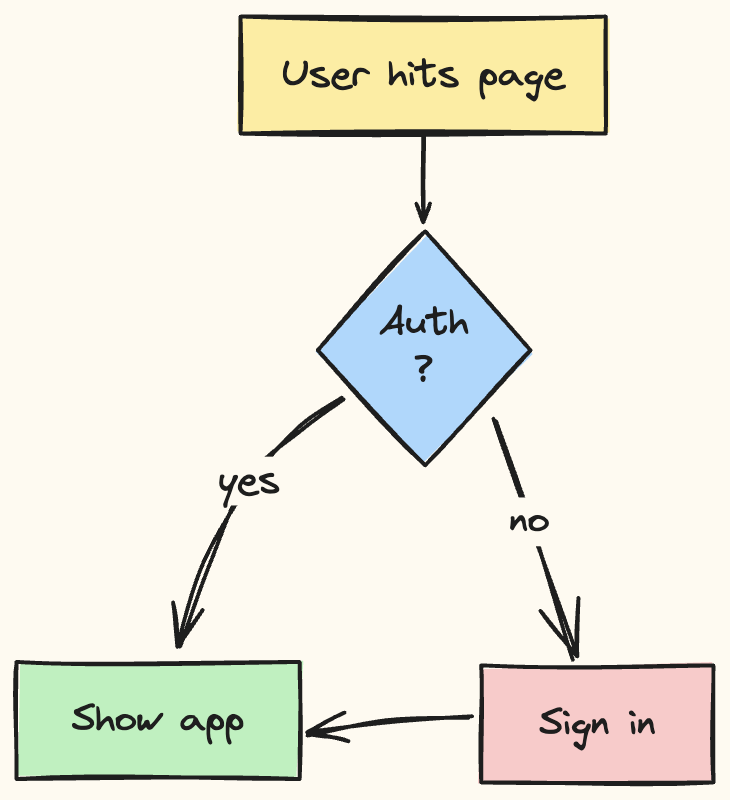
Flowblock. You open the canvas and draw it: drop a box for "User hits page", a diamond for "Auth?", two more boxes, and connect them with arrows you place by hand. You decide the layout, the colours, and which branch goes where. On save, the flowchart becomes a native image block on the page, and the editable scene is preserved for the next change.
Editing the flowchart as the process evolves
The first draft is rarely where time is lost. The cost shows up later, when the process changes and the flowchart on the page quietly goes wrong. Say the flow gains a step: after signing in, users now complete a short profile screen before the app loads.
- Native Mermaid: open the block, insert a new node in the syntax, re-wire the arrows in text, and accept whatever the auto-layout does to the rest of the diagram. Doable, but fiddly, and only by someone fluent in Mermaid.
- Flowchart Generator: add a row for the new step and point the surrounding rows at it. Clean when the change is structural; awkward if you also want to restyle or reposition anything.
- Flowblock: click Edit, drop a new box between two existing ones, drag the arrows, save. The image block updates in place, the rest of the layout stays exactly as you left it, and anyone on the team can do it.
This is the axis that should drive the choice for documentation that has to stay current. The maintenance trade-offs across every approach and diagram type are laid out in the Notion diagram guide.
Picking by team type
- Solo or engineering-only. If you are comfortable in Mermaid and the flowchart is mostly for yourself, native Mermaid is hard to beat on speed and price. Reach for Flowblock once a flow becomes something you revisit and restyle often.
- Small cross-functional team. The moment a non-engineer needs to edit the flowchart, native Mermaid stops working for them. Flowblock's visual canvas is the path that lets a PM or ops lead update the flow without learning syntax, while still keeping it inside Notion.
- Data-driven process owner. If your processes already live as Notion database rows and you think relationally, the Flowchart Generator turns that data into a flowchart for almost nothing. If they do not, the database setup is overhead you can skip with a visual tool.
FAQ
Does Notion have a built-in flowchart tool?
Partly. Notion's /code block has a Mermaid language option, and Mermaid's flowchart syntax renders as a static image inside the page. That is a real built-in path for a flowchart, but it is code-only: you type the nodes and arrows as text, and there is no canvas to drag boxes around on. For visual editing you need a template that drives Mermaid from a database, or a Chrome extension like Flowblock that opens a real drawing canvas inside Notion.
What is the easiest way to make a flowchart in Notion?
For a one-off flowchart you will never touch again, typing Mermaid into a /code block is the fastest path, since there is nothing to install. If you expect to keep editing it, the easiest path over time is Flowblock: you draw on an Excalidraw or draw.io canvas inside Notion and it saves as a native image block that reopens for editing in one click. Easiest-to-start and easiest-to-maintain are different questions, and most flowcharts get edited more than once.
Can I edit a flowchart in Notion after I save it?
It depends how it got there. A native Mermaid flowchart is editable as source text but not as a visual canvas. A Flowchart Generator diagram updates when you change the database rows behind it. A flowchart you uploaded as a flat image is not editable at all without going back to the original tool. A Flowblock flowchart stays editable forever: clicking Edit reopens the exact scene in Excalidraw or draw.io, because the source is preserved inside the saved image.
Should I use Mermaid code or a visual tool for a Notion flowchart?
Use Mermaid code when the flowchart is small, you are comfortable with the syntax, and it rarely changes; the source travels well and costs nothing. Use a visual tool when layout matters, when non-technical teammates need to edit, or when the flow will keep evolving. Mermaid makes the first draft fast and the tenth edit slow. A visual canvas reverses that trade-off, which is why it wins for documentation that has to stay current.
How do I share a Notion flowchart with someone who does not have my Notion workspace?
Share the Notion page itself with a public or guest link, and the flowchart renders for anyone who opens it, since native Mermaid blocks and saved image blocks are both part of the page. If you need the flowchart outside Notion entirely, export it: a Flowblock diagram is a standard SVG image you can download and drop into a slide deck, a doc, or a ticket, and a Mermaid flowchart can be re-rendered anywhere that supports Mermaid.
Looking for setup, editor, or billing details? See the detailed FAQ →
Want a flowchart that stays editable inside Notion?
Flowblock draws flowcharts on an Excalidraw or draw.io canvas and saves them as native Notion image blocks, with a one-click Import for Notion AI's Mermaid output.
Try Flowblock - free