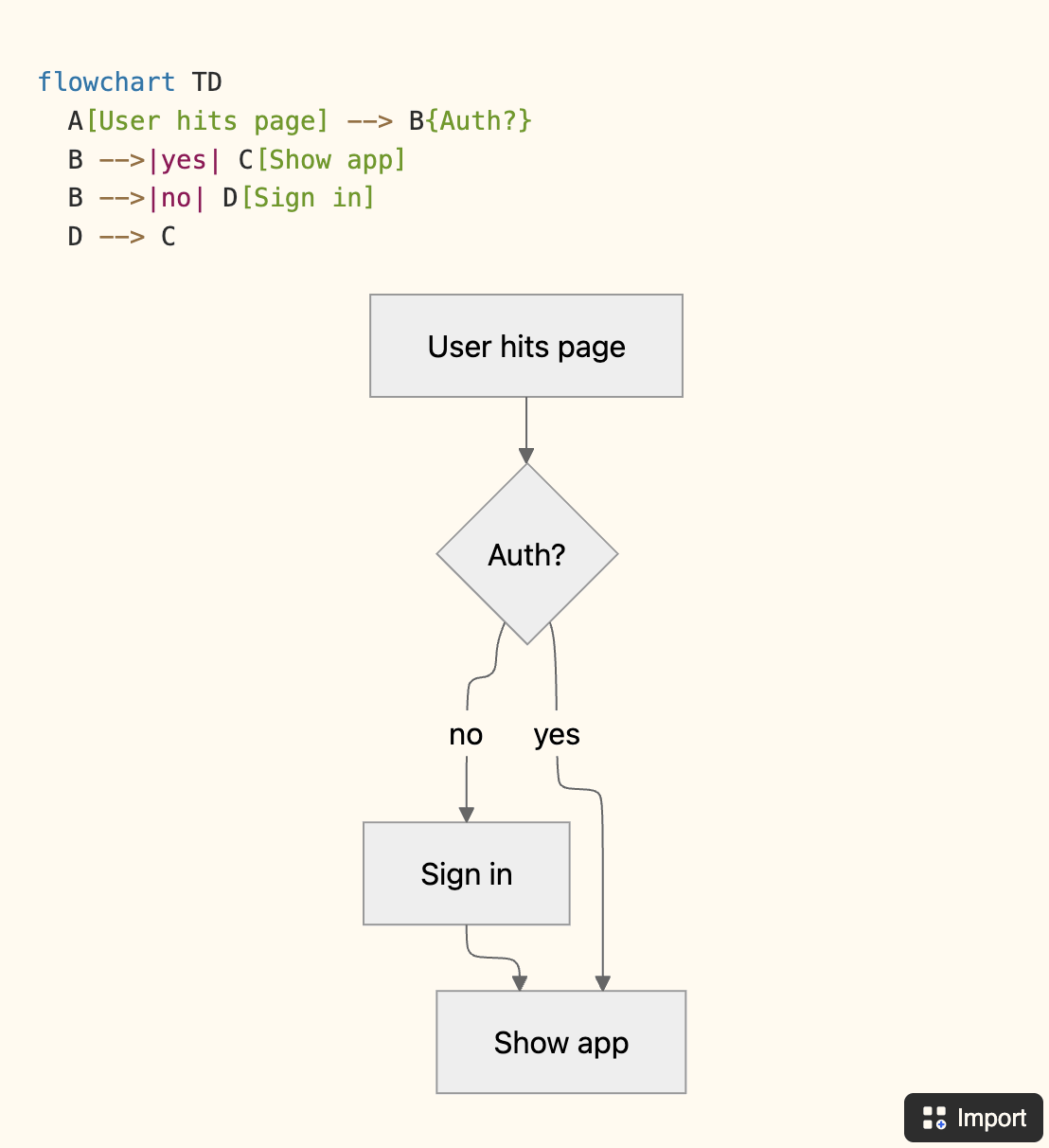
Mermaid to flowchart in Notion - one click.
Make Notion AI flowcharts editable.
Edit your Notion Mermaid blocks - the ones Notion AI hands you - with Excalidraw and draw.io. Without leaving your Notion page.
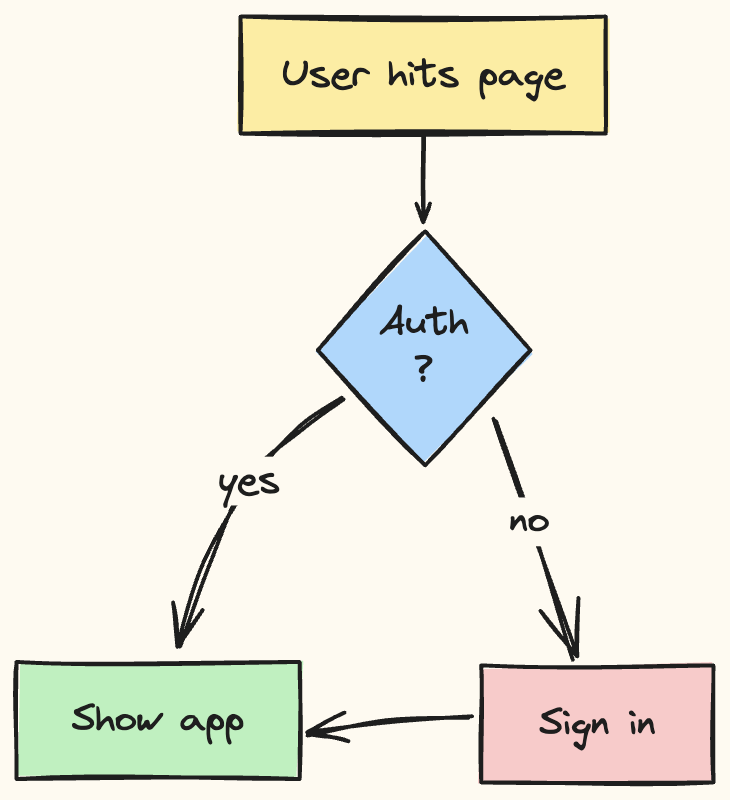
Multi-editor support.
Excalidraw for hand-drawn sketches and whiteboarding, draw.io for precise technical work. Switch per diagram and edit Notion AI diagram output in whichever canvas fits.
Your data, not ours.
Diagrams save straight to your Notion workspace as native image blocks. Flowblock's servers never hold a copy. Uninstall any time and the diagrams stay in your pages, yours to keep.
Draw from scratch, too.
Not every diagram starts as Mermaid. A floating button on every Notion page opens a blank canvas, ready in one click. Sketch, save, done.
Version history with rollback. Pro
Made a change you regret? Every diagram automatically keeps its last five versions, restore any of them with one click.
Notion AI sketches · Flowblock edits
Notion AI to editable diagram, in three steps.
Make every Notion AI flowchart editable without a new tab, copy-paste, or extra service. The diagram becomes a real Notion image block - yours forever, even if you uninstall Flowblock.
01
Notion AI hands you a Mermaid block.
You ask Notion AI to sketch a flow. It produces a code block with mermaid at the top - a static image you can't really edit.
02
Click Import.
Hover the Mermaid block in Notion - Flowblock adds an Import button in the corner. One click parses the source to convert Notion AI flowchart output into a real, editable diagram in the modal.
03
Edit, save - done.
Drag a node, recolor, add a label. Save and the Notion block becomes a clean Excalidraw or draw.io drawing: Notion AI Mermaid editable in place, reopenable any time, edits that persist forever.
watch it in action
 Add to Chrome - free
You sketch · Flowblock keeps
From blank page to editable diagram, in three steps.
Not every diagram starts as Mermaid. The same floating button opens a blank canvas - sketch where your work already lives, and the result lives there too.
01
Open any Notion page.
The Flowblock button sits in the bottom-right corner of every page you've connected - quietly out of the way until you need it.
02
Click. Pick your editor.
One click opens a blank canvas in Excalidraw (sketches, whiteboarding) or draw.io (technical diagrams). Right-click the button to switch the default editor.
03
Save - done.
Your drawing becomes a native Notion image block, inserted right where you clicked. Reopen any time to edit; we keep the source so the diagram stays editable forever.
watch it in action
Add to Chrome - free
pricing
Get started for free.
Free covers 5 drawings a month. Go Pro when AI flowcharts become a daily habit.
Free
$0
forever
- 5 drawings per month
- Excalidraw & draw.io editors
- AI / Mermaid flowchart import
- Native Notion blocks
Pro
$4.99
/ month
$3.75
/ month
- Unlimited drawings
- Unlimited AI / Mermaid flowchart import
- Version history with one-click rollback
- Multiple Notion workspaces
- Priority support
Common questions.
Does it work with Notion AI's Mermaid diagrams?
Yes. Notion AI often emits diagrams as Mermaid code blocks, which render as a static image you can't tweak. Flowblock detects the block, parses the source, and opens it as a real, editable diagram in Excalidraw or draw.io - saved back as a native Notion block.
For the long version with side-by-side comparisons of every Mermaid converter, see the guide: How to convert Mermaid to an editable flowchart →
Can I edit a Notion AI diagram after generating it?
Not natively. Notion AI outputs diagrams as Mermaid code blocks, which Notion renders as a static image with no drag-and-drop editing.
Flowblock adds a one-click Import button to every Mermaid block. It parses the source and reopens the diagram in Excalidraw or draw.io, where every node, edge, and label is editable. Save to put the edited version back into the same Notion page as a native image block. For the per-tool comparison, see our roundup of the best diagram tools for Notion.
Does Flowblock work on Notion's free plan?
Yes. Flowblock uses Notion's standard file-upload API, which works on Free, Plus, Business, and Enterprise tiers. No paid Notion plan required.
Flowblock itself has a free tier (5 drawings per month, both editors, Mermaid import) and a Pro tier from $3.75 per month for unlimited drawings, version history, and multiple workspaces.
How is this different from the draw.io extension for Notion?
Three things:
- Two editors - Excalidraw for sketches and whiteboarding, draw.io for precise technical work, switchable per diagram.
- Version history with one-click rollback on Pro.
- Mermaid / AI flowchart import - one-click conversion of any Notion Mermaid block into an editable diagram.
Notion has its own diagram blocks - why use Flowblock?
Notion's built-in options (Mermaid code blocks, simple shapes) cover basic cases. Flowblock gives you two full diagramming tools - Excalidraw and draw.io - directly in your page, with a real canvas, libraries of shapes, freehand drawing, and version history. Same workflow as Notion-native; far more capability.
For the longer walkthrough of sketching from scratch on a Notion page, see: Draw and whiteboard inside Notion →
Are my drawings secure?
Yes. Diagrams save straight to your Notion workspace as native image blocks, uploaded to Notion's own file storage using your access token, not ours. Flowblock's servers never hold a copy.
Your data lives in your Notion pages, not on Flowblock's infrastructure. A diagram you drew a year ago opens straight back into the editor when you click it.
Looking for setup, editor, or billing details? See the detailed FAQ →
Updated: 2026-05-22 · Pricing, free-tier limits, and supported workflows verified against the live product.